Engineering/Frontend
[JavaScript] Event: 키 관련 이벤트
Isaac S. Lee
2023. 10. 5. 14:42
🍁키 관련 이벤트
키 관련 이벤트는 onkeyXXX 형태를 가진다.
보편적으로 keydown을 사용한다. keyup을 사용하는 경우는 방금 누른 문자가 필요한 업무를 할 때이다.
onkeydown
키를 눌렀을 때 발생한다.
<!DOCTYPE html>
<html lang="en">
<head>
    <meta charset="UTF-8">
    <meta name="viewport" content="width=device-width, initial-scale=1.0">
    <title>Document</title>
    <style>
        input, textarea {
            display: block;
            margin-bottom: 10px;
            outline: none;
            width: 300px;
        }
        input { padding: 5px; }
        textarea { height: 200px; }
    </style>
</head>
<body>
    <h1>키 이벤트</h1>

    <form name="form1">
        <input type="text" name="txt1">
        <input type="text" name="txt2">
        <textarea name="txt3"></textarea>
    </form>

    <script>
        var txt1 = window.document.form1.txt1;
        var txt2 = window.document.form1.txt2;
        var txt3 = window.document.form1.txt3;

        txt1.onkeydown = m1;

        function m1() {
            console.log('keydown');
        }
    </script>
</body>
</html>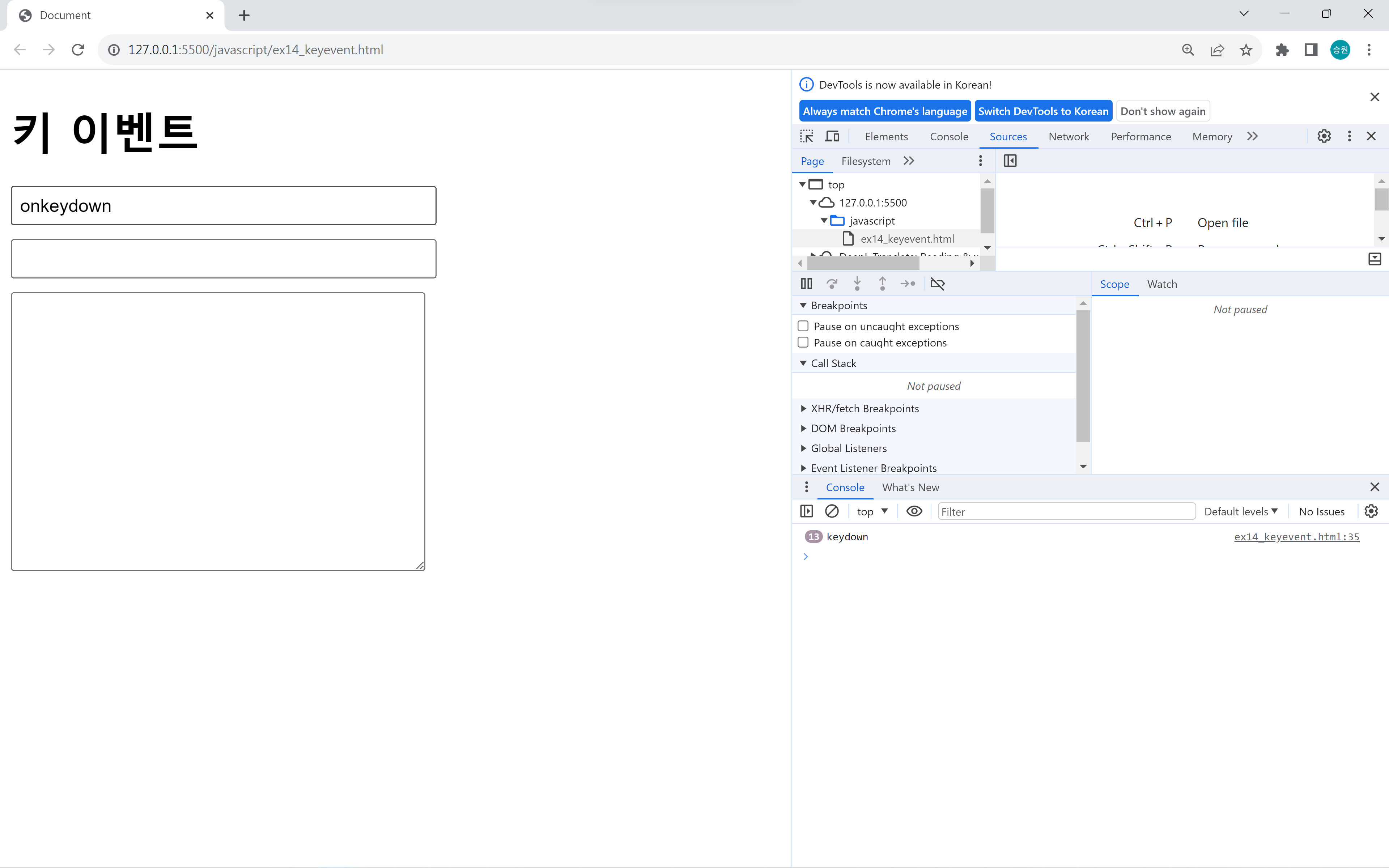
키를 누르고 있으면 연속 입력된다.
function m1() {
    //console.log('keydown');
    console.log(event.keyCode); //입력한 문자 코드
}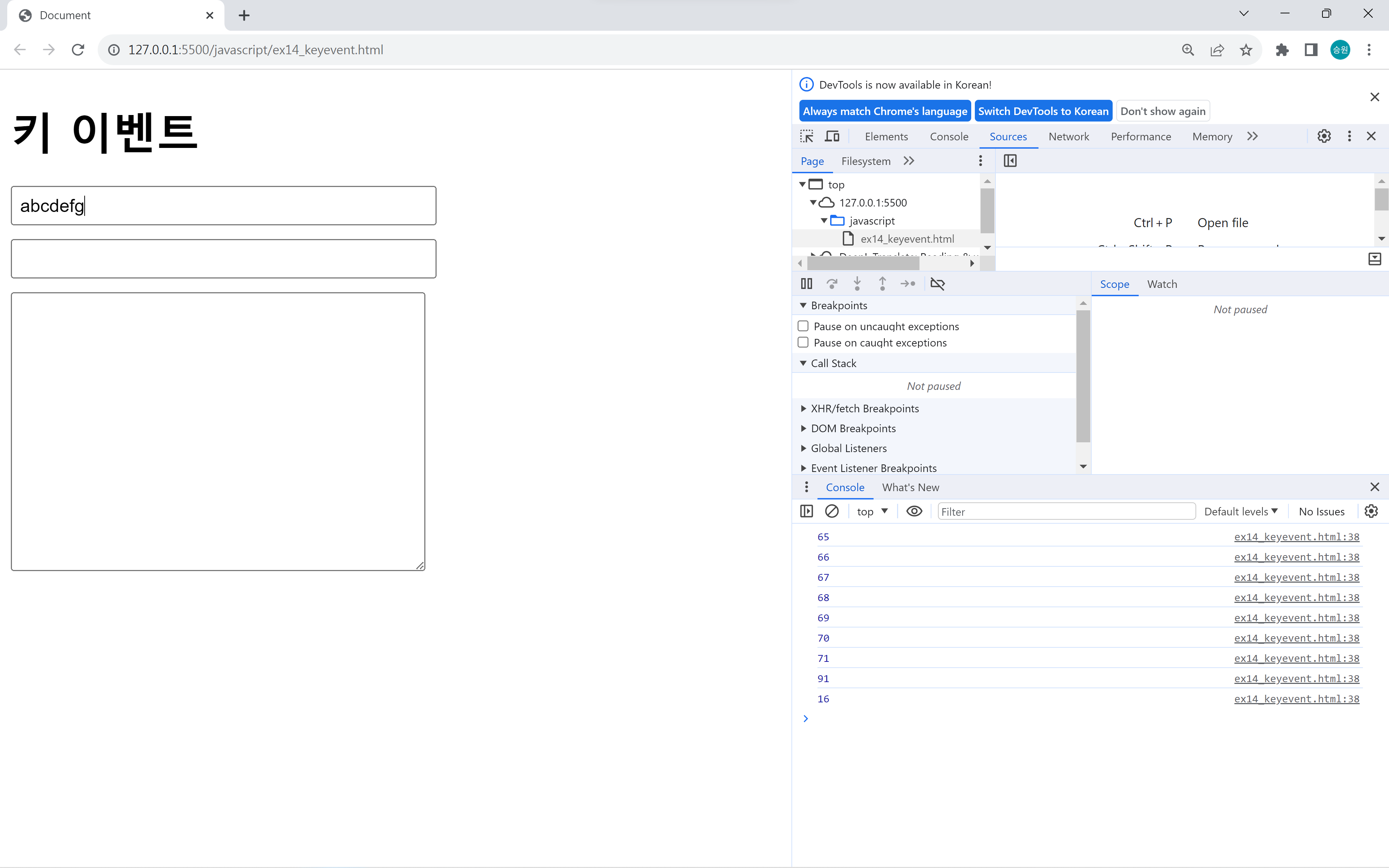
입력된 (물리)키는 구분이 가능하지만, 입력된 문자(같은 키에 할당된 a와 A)는 구분할 수 없다.
keydown은 입력된 문자는 중요하지 않을 때, 물리키를 구분하는 용도로 사용한다.
모든 키에 반응하므로 keypress보다 keydown을 많이 사용한다. keypress는 Shift, Ctrl, Alt 등을 모두 구분한다.
keydown은 방금 누른 문자를 반영할 수 없다. 한 박자 늦게 반영되므로 방금 누른 문자가 필요할 때에는 keyup에 적용한다.
onkeyup
키를 뗐을 때 발생한다.
<script>
    var txt1 = window.document.form1.txt1;
    var txt2 = window.document.form1.txt2;
    var txt3 = window.document.form1.txt3;

    txt1.onkeydown = m1;
    txt1.onkeyup = m2;

    function m1() {
        console.log('keydown');
    }

    function m2() {
        console.log('keyup');
    }
</script>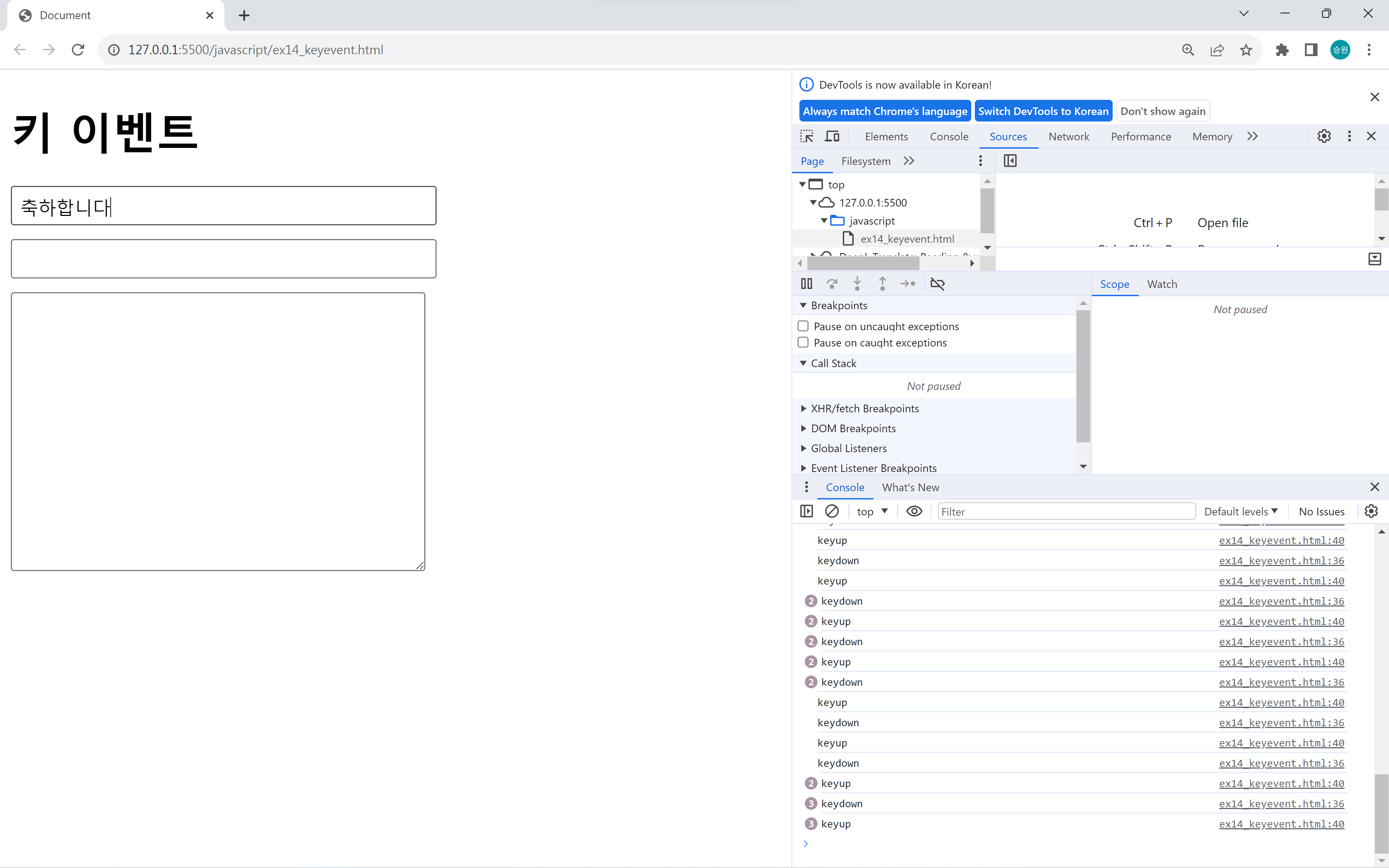
onkeypress
키를 눌렀을 때 발생한다.
<script>
    var txt1 = window.document.form1.txt1;
    var txt2 = window.document.form1.txt2;
    var txt3 = window.document.form1.txt3;

    txt1.onkeydown = m1;
    txt1.onkeyup = m2;
    txt1.onkeypress = m3;

    function m1() {
        console.log('keydown');
    }

    function m2() {
        console.log('keyup');
    }

    function m3() {
        console.log('keypress');
    }
</script>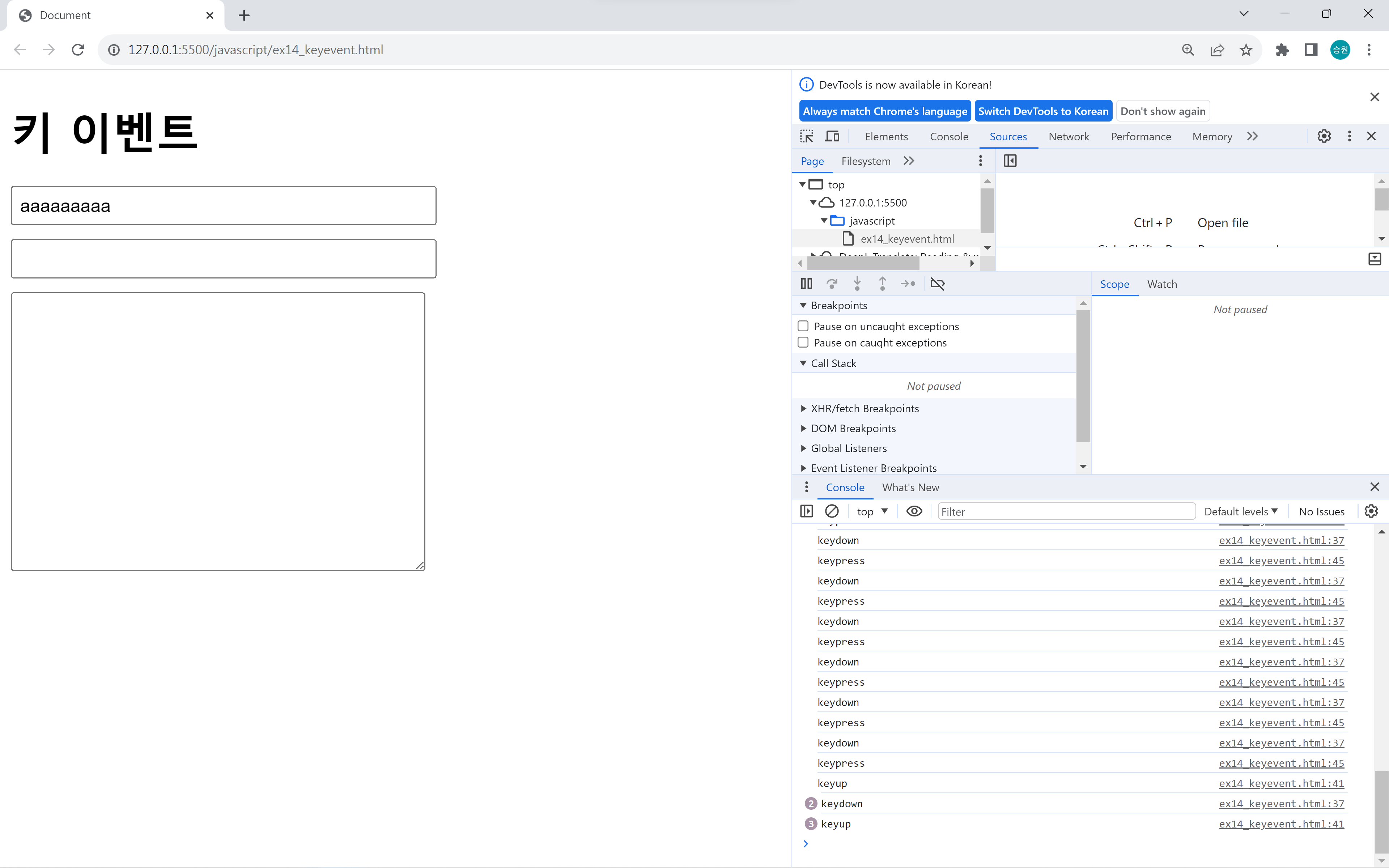
function m3() {
    //console.log('keypress');
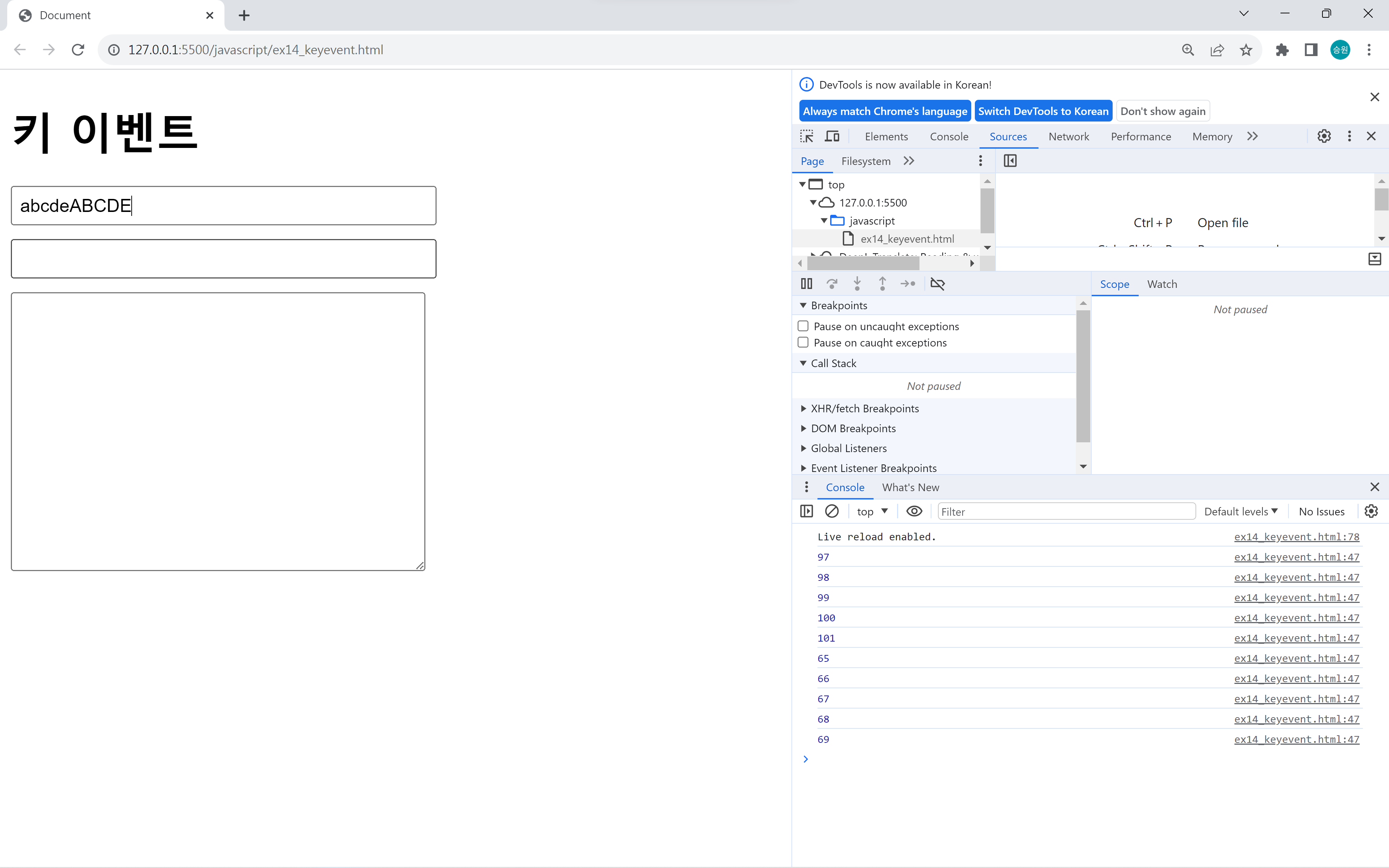
    console.log(event.keyCode); //입력한 문자 코드
}
눌렀을 때의 이벤트가 두 개인 이유는 내부 특성이 다르기 때문이다.
keypress는 입력된 문자를 구분 가능하지만, 글자를 입력하는 키가 아니면 인식을 하지 못한다.
또한 keypress는 아스키코드만 인식하여 한글, 일본어 등을 인식하지 못한다는 단점이 있다.
방향키 인식
- 좌: 37
- 상: 38
- 우: 39
- 하: 40
<!DOCTYPE html>
<html lang="en">
<head>
    <meta charset="UTF-8">
    <meta name="viewport" content="width=device-width, initial-scale=1.0">
    <title>Document</title>
    <style>
        input, textarea {
            display: block;
            margin-bottom: 10px;
            outline: none;
        }
        input { padding: 5px; }
    </style>
</head>
<body>
    <h1>키 이벤트</h1>

    <form name="form1">
        <input type="text" name="txt1">
        <input type="text" name="txt2">
        <textarea name="txt3"></textarea>
    </form>

    <script>
        var txt1 = window.document.form1.txt1;
        var txt2 = window.document.form1.txt2;
        var txt3 = window.document.form1.txt3;

        txt1.onkeydown = m1;
        txt1.onkeyup = m2;
        txt1.onkeypress = m3;

        function m1() {
            if (event.keyCode == 37) {
                txt1.size -= 1;
            } else if (event.keyCode == 39) {
                txt1.size += 1;
            }
        }

        function m3() {
            if (event.keyCode == 37) {
                txt3.cols--;
            } else if (event.keyCode == 39) {
                txt3.cols++;
            } else if (event.keyCode == 38) {
                txt3.rows--;
            } else if (event.keyCode == 40) {
                txt3.rows++;
            }
        }
    </script>
</body>
</html>
keyCode로 키 번호 받은 후, if문으로 검증하여 방향키 조작을 할 수 있다.